n8n Workflow Template Import Checklist for Video Automation
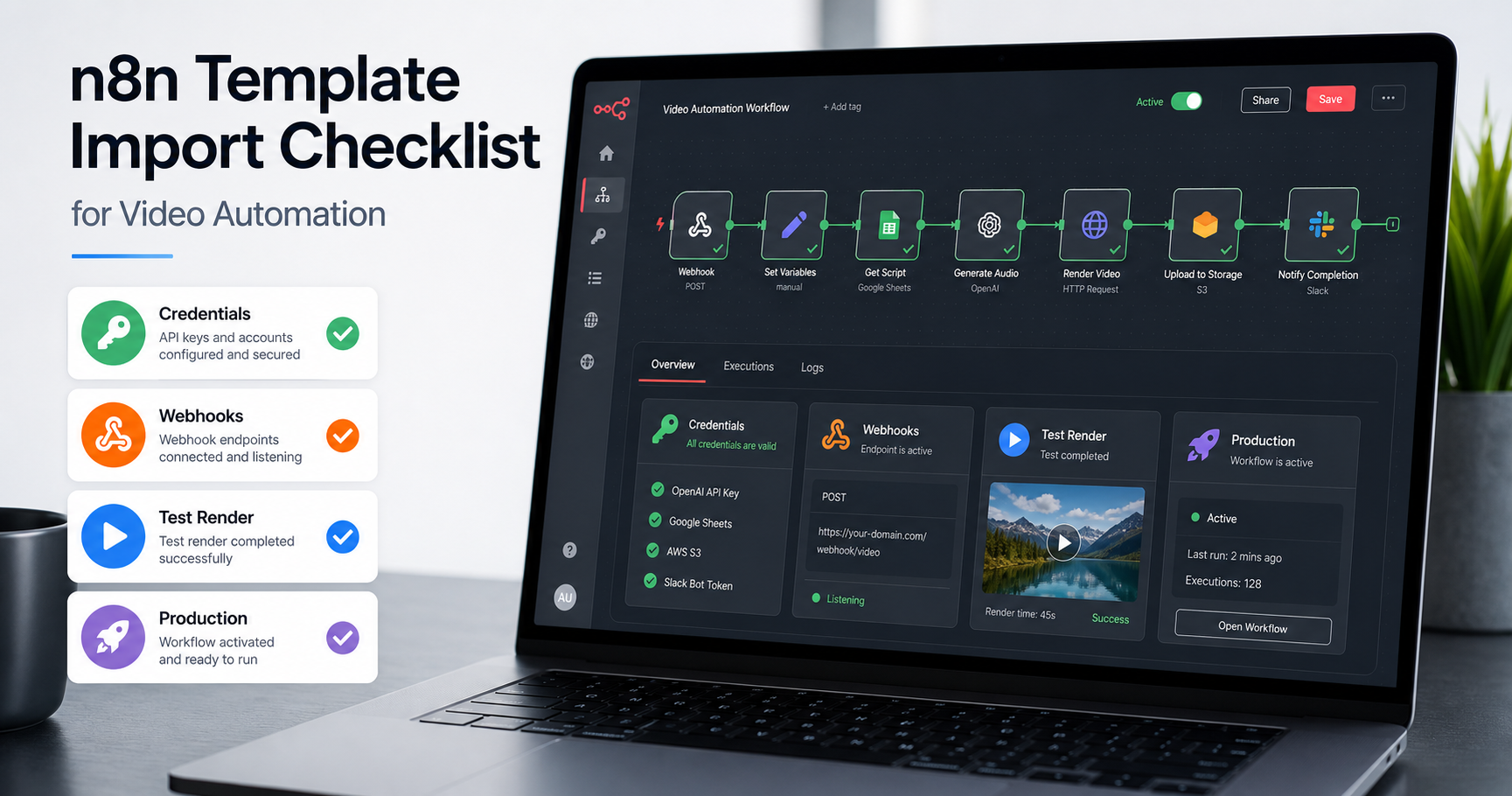
Importing an n8n workflow template is easy. Making that imported workflow reliable enough to generate videos in production is the part most teams underestimate.
This checklist is for teams that buy or download an n8n video automation template and want a clean path from "JSON imported" to "workflow running with real API keys, real webhook URLs and real output files." Use it before you connect production accounts, especially if the workflow renders videos, adds captions, publishes to social platforms or sends files to clients.
If you are still choosing a workflow, start with the n8n templates marketplace. If you need the server configured first, use the n8n setup service before importing production workflows.
1. Save the original workflow JSON
n8n workflows can be exported and imported as JSON. The official n8n docs support importing from file, URL, clipboard and command line. That makes templates portable, but it also means the JSON file is your source of truth.
- Store the original file in a private folder.
- Rename your local copy with the workflow purpose and date.
- Do not edit the original file directly.
- Keep a changelog of credentials, node names and webhook paths you modify.
For paid templates, this also gives you a clean support reference. If something breaks after customization, you can compare your edited workflow against the original.
2. Scrub and remap credentials
Exported n8n workflow JSON can include credential names and IDs. IDs are not usually sensitive by themselves, but credential names can expose client names, internal services or account structure. HTTP Request nodes imported from cURL can also contain authentication headers.
- Search the workflow JSON for
Authorization,Bearer,api_key,token,secretandpassword. - Replace example credentials with your own n8n credentials.
- Rename credentials by role, not by person or client.
- Confirm each HTTP Request node uses the intended auth method.
- Remove any hardcoded API key from node bodies, headers and URLs.
For SamAutomation video workflows, your rendering step should use a secure credential for the JSON to Video API rather than a key pasted into the body.
3. List every required account
A video automation workflow often touches more than one system. A simple product-to-video template might need n8n, a video API, an image source, a spreadsheet, cloud storage and a publishing account.
| Requirement | Example | Owner | Ready? |
|---|---|---|---|
| n8n instance | Cloud or self-hosted | Ops | Yes/No |
| Video rendering API | SamAutomation | Marketing/Ops | Yes/No |
| Input source | Airtable, Sheets, WooCommerce | Content team | Yes/No |
| Asset storage | S3, Drive, CDN | Ops | Yes/No |
| Publishing destination | YouTube, TikTok, Instagram, Slack | Social team | Yes/No |
This is where many imported workflows fail. The workflow can be correct while the account setup is incomplete.
4. Test with a minimal payload
Do not start with your full catalog, content calendar or client data. Start with one minimal record that exercises the workflow without hiding errors in a batch.
- One title or hook.
- One image or video URL.
- One caption or short script.
- One target aspect ratio.
- One destination or callback target.
Run this through the imported workflow first. If the workflow cannot render one simple video, batching will only make debugging harder.
5. Separate test and production webhooks
n8n's Webhook node exposes different URLs for testing and production. The test URL is useful while you listen in the editor. The production URL is the URL you should connect to external tools after the workflow is published.
- Use the test URL only while building.
- Publish or activate the workflow before using the production URL.
- Update external systems to call the production URL.
- Add authentication to public webhooks.
- Keep webhook paths stable when another system stores the URL.
If the workflow receives product updates, form submissions, orders or content briefs, this step matters. A template that works in the editor can still fail in production if an external system calls the wrong webhook URL.
6. Validate the video render contract
Every video workflow has a contract between n8n and the rendering API. That contract is the JSON payload, the status response, the output URL and the failure state.
- The render endpoint accepts your final JSON.
- Required fields are always present.
- Optional fields have safe defaults.
- The workflow stores the returned render ID.
- The workflow polls or receives a callback until the video is complete.
- Failed renders are visible in n8n executions.
The JSON to Video developer guide is the deeper companion for payload structure and render status handling.
7. Add an error owner before production
A workflow without an error owner is not production-ready. Someone should know where failed executions go, what to retry and when to stop the workflow.
- Who receives failure alerts.
- Which errors are retryable.
- Which errors mean the input data is invalid.
- Where failed payloads are stored.
- How to rerun one failed item without rerunning the whole batch.
For content operations, this is often the difference between a useful automation and a quiet backlog of broken executions.
8. Check limits before batching
Video workflows are slower and heavier than normal text automations. A template that handles one item may still need throttling for 100 items.
- n8n execution limits on your plan or server.
- API rate limits for rendering, captions, AI models and publishing.
- File size limits for uploaded media.
- Webhook payload limits.
- Storage expiry for output URLs.
If you are importing a high-volume workflow, route the first batch through 5 to 10 items. Then increase only after the execution history is clean.
9. Document the final handoff
Once the workflow is working, document the version you actually use. This does not need to be long. It needs to be specific.
- Workflow name.
- Import source.
- Required credentials.
- Webhook production URL owner.
- Test payload.
- Normal output location.
- Failure alert destination.
- Last successful test date.
Import checklist summary
- Save the original workflow JSON.
- Scrub credentials and remap every API key.
- Confirm every required account exists.
- Run one minimal payload.
- Switch from test webhook to production webhook.
- Validate render status and output delivery.
- Assign an error owner.
- Check rate limits before batching.
- Document the final setup.
The best template is not just the one with clever nodes. It is the one your team can import, understand, monitor and rerun when something changes.
Browse ready-to-import workflows in the SamAutomation n8n templates marketplace or get the foundation configured through custom n8n setup.